Each case keeps a full history of its hearings. Your team and your client (if you share the case) see the same up-to-date record.
1. Open the case and go to Hearings
Tap the case on your home screen, or find it under Cases. The case page has tabs: Basic Details, Hearings, Files, Notes and Fees. Open Hearings.
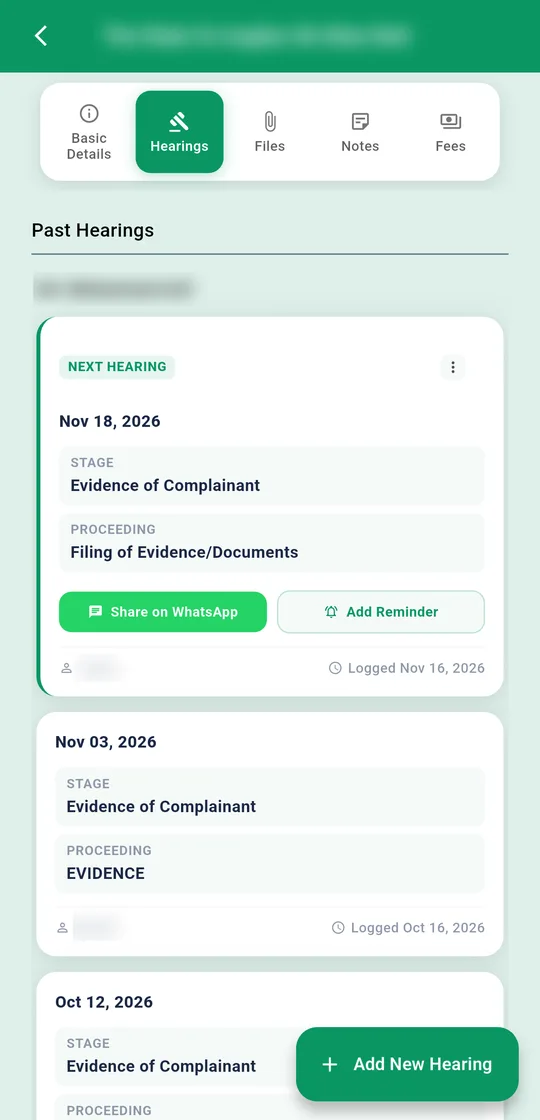
2. Tap Add New Hearing
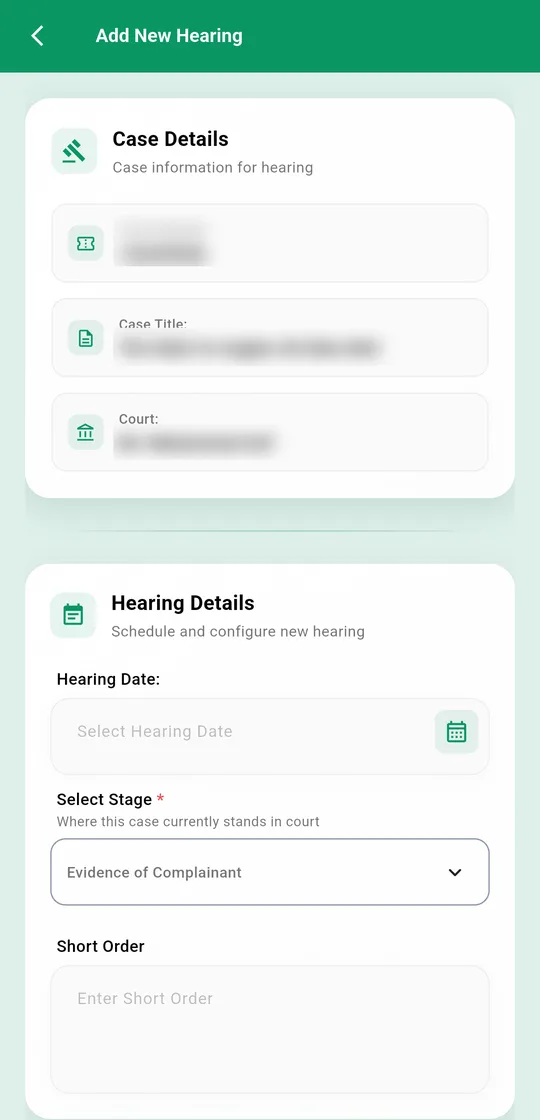
- Hearing Date: the next date the court gave.
- Select Stage: where the case stands now, for example Evidence or Arguments.
- Short Order: what the court ordered, if anything.
- Select Proceeding: what happens at the next hearing.
- Action Required: turn it on if you need to do something before then.
- Additional Notes: anything you want to remember.
Tap Save. The app then asks whether you want to attach anything, such as a photo of the order sheet.
3. Tell your client, or set a reminder
Each hearing has two buttons: Share on WhatsApp sends your client the date and stage, and Add Reminder sets an alert for it.
Missed a hearing?
If the last hearing date passed and nothing was recorded, the case shows as Missed on your home screen. Open it and the app offers to add the new hearing straight away.
Missing a proceeding? Add your own under Manage → Office setup → Manage Proceedings.