Everyone in your chamber works on the same cases, so hearings your munshi records show up on your phone straight away.
1. Open Manage Users
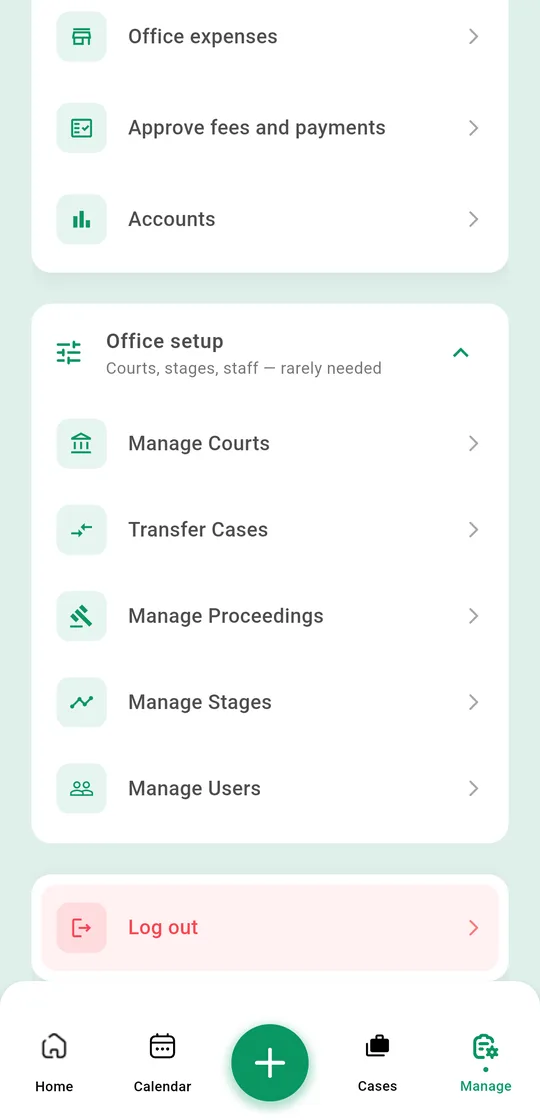
Go to Manage, scroll down and tap Office setup to open it, then Manage Users. Only the chamber admin sees this.
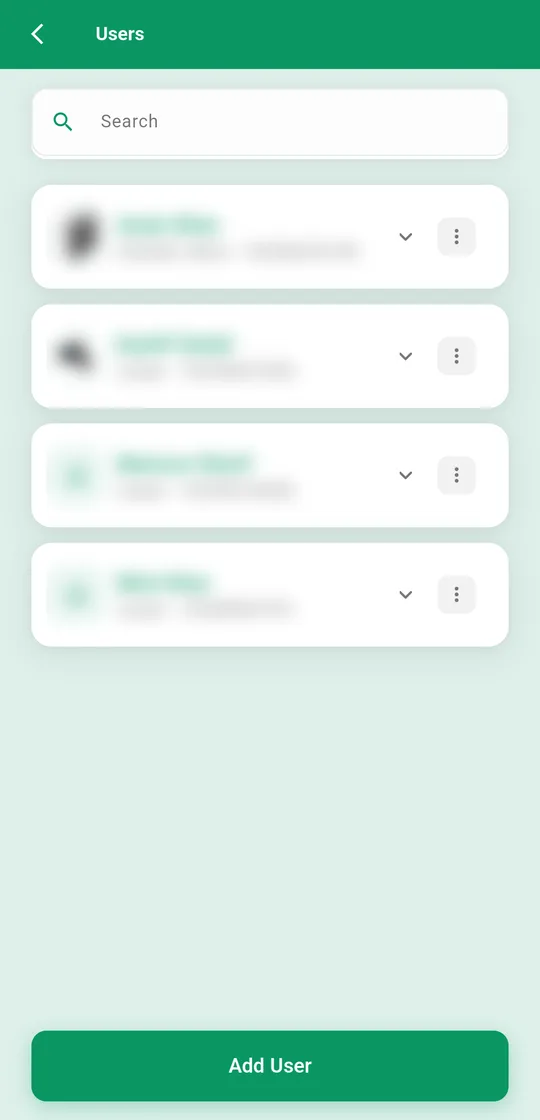
You see everyone in your chamber with their role. Tap Add User at the bottom.
2. Enter their details
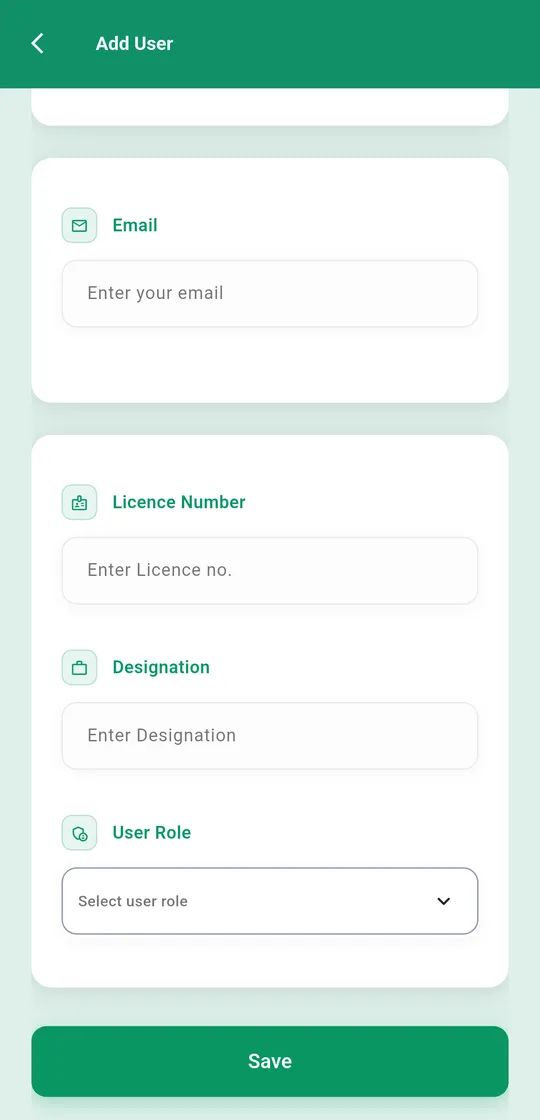
You only need their First Name, Contact (phone number) and User Role. Email, designation and licence number are optional.
- Chamber Admin: can do everything, including fees, approvals and adding users.
- Lawyer: adds and manages cases, hearings, clients and reminders. Fees they add wait for your approval.
- Assistant: for a munshi or clerk. Records hearings, uploads files and keeps reminders, but can't add new cases.
For money, you can also give someone permission to issue receipts and invoices, or to approve payments.
3. They log in with their phone
Tell them to download WakeelsApp, tap I'm a lawyer or munshi → Log in or sign up, and log in with the phone number you entered. They get an SMS code and don't need a password.
Someone leaving? Move their cases to another person under Manage → Office setup → Transfer Cases.